Using Secure Start DOS
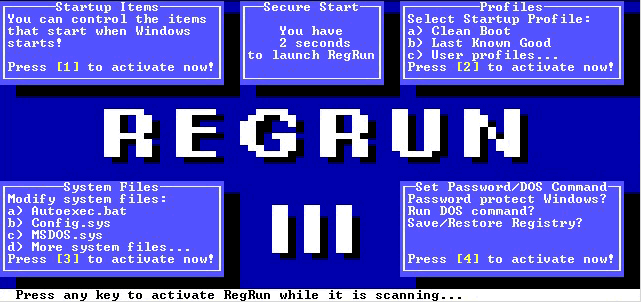
If you configure RegRun to activate Secure Start, you will see this picture when Windows starts.
1) If Secure Start detects no content in RunOnce and wininit.ini, it will bypass the open window. You can optionally open that window by pressing Spacebar.
2) If you want to activate Secure Start, press any key except Spacebar or ESC.
3) Press ESC to exit.
Wait, while RegRun scans the files and registry.
If WatchDog finds any changes you will be prompted to manage it.
After that you will see a menu of utilities.
· Startup Items;
· Startup Profiles;
· System Files;
· Password/DOS command;
· Antiviral Software.
"Startup Items Editor"
Windows uses three registry keys to launch programs.
You may select:
v HKLM\Microsoft\Windows\CurrentVersion\Run (F3)
v HKLM\Microsoft\Windows\CurrentVersion\RunServices (F4)
v HKCU\Microsoft\Windows\CurrentVersion\Run (F5)
v HKCU\Microsoft\Windows\CurrentVersion\RunEx (F6)
The "Startup Items" editor shows all the programs that start from these registry keys. You get the full control on these items!
Del - allows to disable an item from starting
It has two cases: final erasing or suspending.
If you only suspend an item, it is later possible to resume starting of the program. Use RegRun in Windows mode for resuming.
· F2 - disable all items
· Enter - edit
· Insert - add new item
We presume that you have the advanced computer skills needed to modify registry keys.
But you need to remember these rules:
The name of key is located on the left side and always it has a forward quote and an end quote. The contents of the registry key are located on the right side and always have quotes. If you need to insert a backslash character, insert the double backslash character, insert a double backslash (\\). If you need to insert a quote, insert backslash and after that the quote (\").
Example:
"Norton CrashGuard Monitor"="\"D:\\PROGRAMS\\NORTON CRASHGUARD\\CGMenu.EXE\""
· To save and process changes - F10.
· To exit - ESC.
Startup Profile's editor
---------------------------------
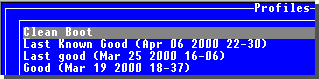
Startup Profile's editor is a unique and powerful feature.
It allows choosing the startup configuration before running Windows!
Startup Profiler is the best tool for resolving startup problems!
Please, remember these important rules for using.
1) Run RegRun in Windows mode and save changes.
This operation creates the file called "regrun2.rr2" that has the full information about the startup process. We give it a friendly alias "Last Known Good". If you don't have a "regrun.rr2" file, you can't use the "Clean Boot" feature. You can restore "Last Known Good" profile from DOS mode or from the Windows mode.
We recommend that you to save one more profile (in Windows mode) for safety.
The "Last Known Good" profile is rewritten every time when you save your work.
2) Run "Configuration" feature and choose page "Secure Start".
Activate this feature and click "Save". The RegRun creates the file "regrun2d.ini".
It is a very important file because it contains information about folders. There is no possibility to get long file names of the folders in DOS mode. And RegRun saves the short names of the folders in "regrun2d.ini".
Be careful!
If you change a user's configuration or reinstall Windows, you will need to repeat this operation.
3) RegRun works in Windows mode, and saves the list of the available profiles to "backlist.ini". RegRun in DOS mode reads this list and tries to open each file. If the file is valid, it adds the full name of the profile to the menu.
4) You can create any number of profiles while you are working with RegRun in Windows mode. After that you can restore any one in RegRun for DOS.
It's not magic!
RegRun for DOS creates the subdirectory "PROFILE" and extracts the files from the profile to that directory.
List of files:
· autoexec.bat
· config.sys
· system.ini
· win.ini
· r2repl.reg (modified registry keys)
· restrr2.bat - the main bat file for restoring.
· STARTUP directory contains the shortcut files. The names of these files are not real. The long file names will be created while processing "restrr2.bat".
· COMMON directory contains the shortcut files for all users.
Tip:
You can extract files from profile using the command:
regrun2d.exe profile.rr2
(Remember, you need to use the short names in the profile)
In this case RegRun for DOS creates all files for restoring but doesn't run it. Explore these files to know more.
After you've chosen the profile for restoring, RegRun extracts all files to the PROFILE directory, modifies the registry and adds a line with "restrr2.bat" to the "winstart.bat" file. Microsoft says that the users may use the "winstart.bat" to load special TSR programs. But I think the main advantage of "winstart.bat" is the possibility to use long file names and other advanced DOS functions. If you didn't know, the DOS program was specially designed for Windows, can use long file names just like any other Windows program.
"Password protection"
---------------------------------
You can set password to Secure Start to improve security.
The feature has two modes:
a) Global password. You will be prompted to enter a password when your computer starts.
b) Local password. You will be prompted to enter a password when you access the edit mode of Secure Start.
You can select only Global or Local mode.
If you enter an empty password it will be disabled.
"DOS commands"
----------------------
While using RegRun for DOS you can run a DOS shell or any other command.
If you have Microsoft scanreg (Windows'98) you can backup or restore the registry.
"Antiviral Software"
----------------------
You can test your computer using any of the registered antivirus utilities.
Use RegRun Windows to register antiviral software.
"Editor commands"
-----------------------
F2 - save
CTRL+F - find string
CTRL+P - print
CTRL+Q - clear all
CTRL+Y - delete line
F4 - begin mark block of lines
F5 - end mark block
F6 - clear marking
CTRL+C - copy block
CTRL+V - move block
CTRL+K - delete block
CTRL+S - save block to file