!Smart App Control in Windows 11 is an additional security feature that blocks the execution of potentially unsafe applications by evaluating them through Microsoft's cloud-based security service or based on their digital signature.
It covers not only .EXE files but also various other file types, and currently does not allow manual exclusion of specific files or locations..
In this article, we will explain how to enable or disable Smart App Control in Windows 11.
To turn Smart App Control at First Sight On or Off in Windows Security, just follow the next steps:
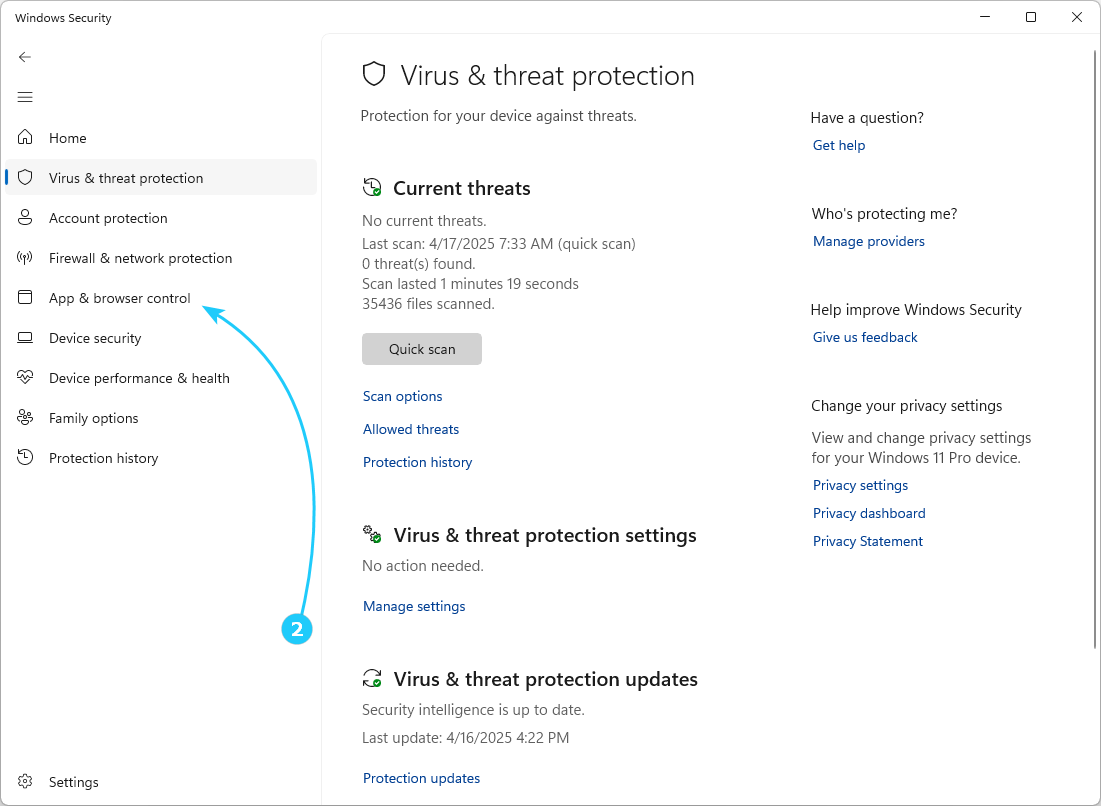
- First, open the Windows Security menu. You can find it by typing Windows Security in Start Search Bar. Then click on the Virus & threat protection icon.
- In the window that opens, select App & browser control.
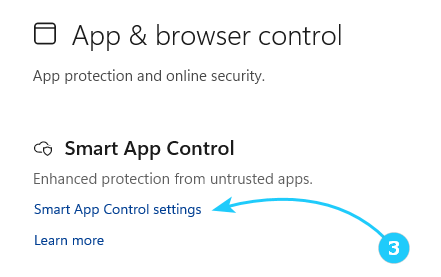
- Select Smart App Control Settings.
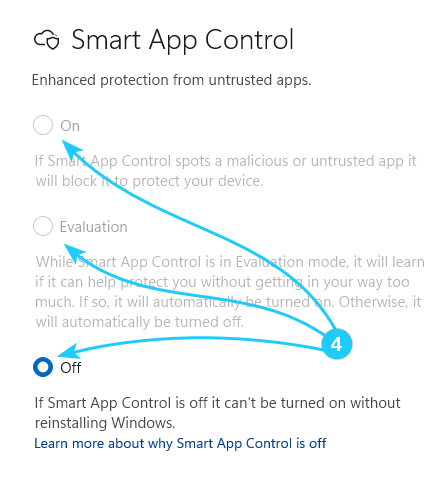
- If the feature is enabled or in evaluation mode, it can be turned off manually by selecting an other option. If the function is turned off, a system reinstall will be required to turn Smart App Control on.