If ads or virus warnings keep popping up in the corner of your screen, a site has permission to send you notifications. Remove that permission in Firefox’s settings. It takes about a minute.
Faster: copy about:preferences#permissionsData into the address bar and press Enter. Then go to step 3.
Step 1
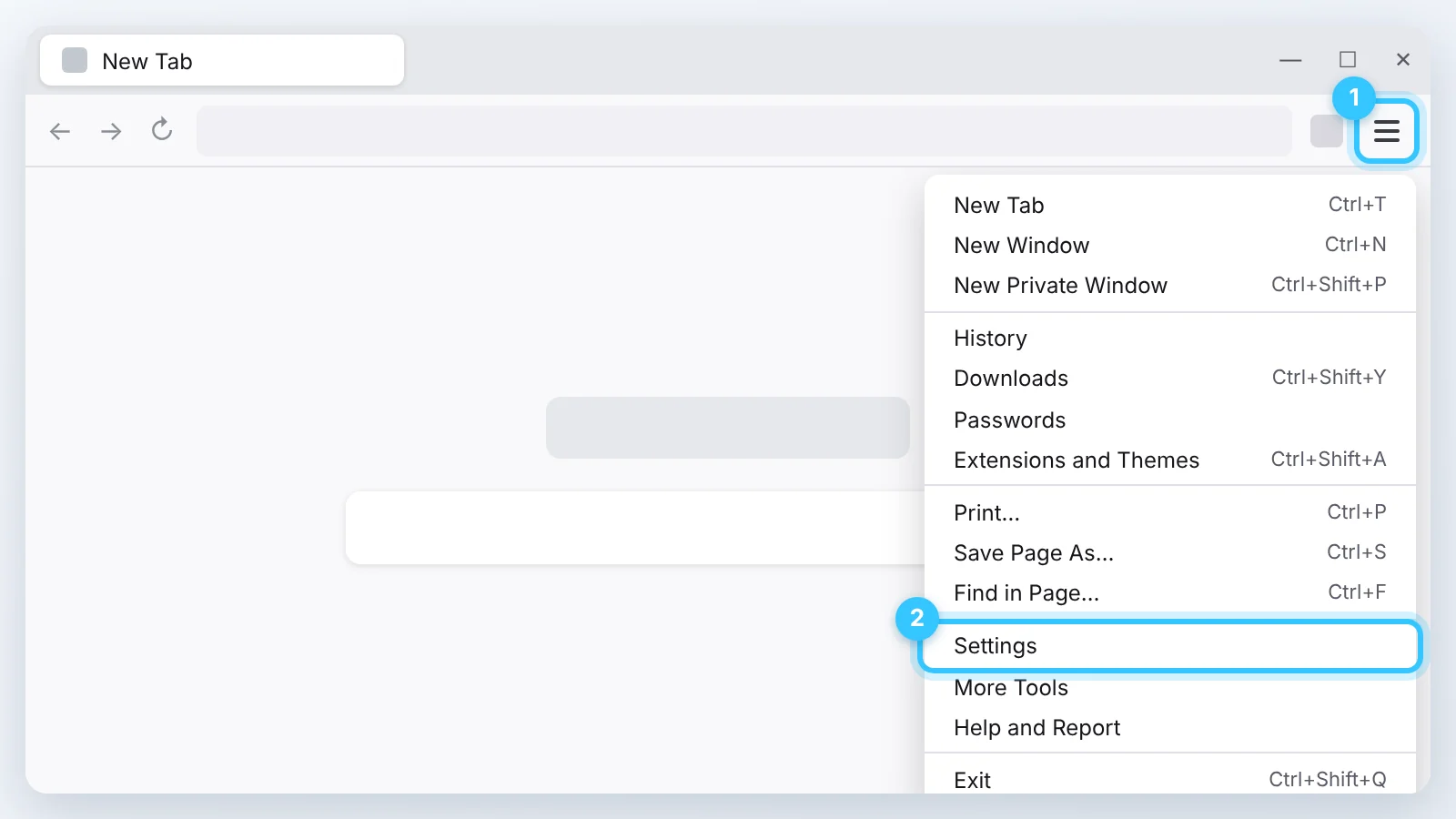
Open Firefox’s menu ≡ in the top right corner (1) and click Settings (2).
Step 2
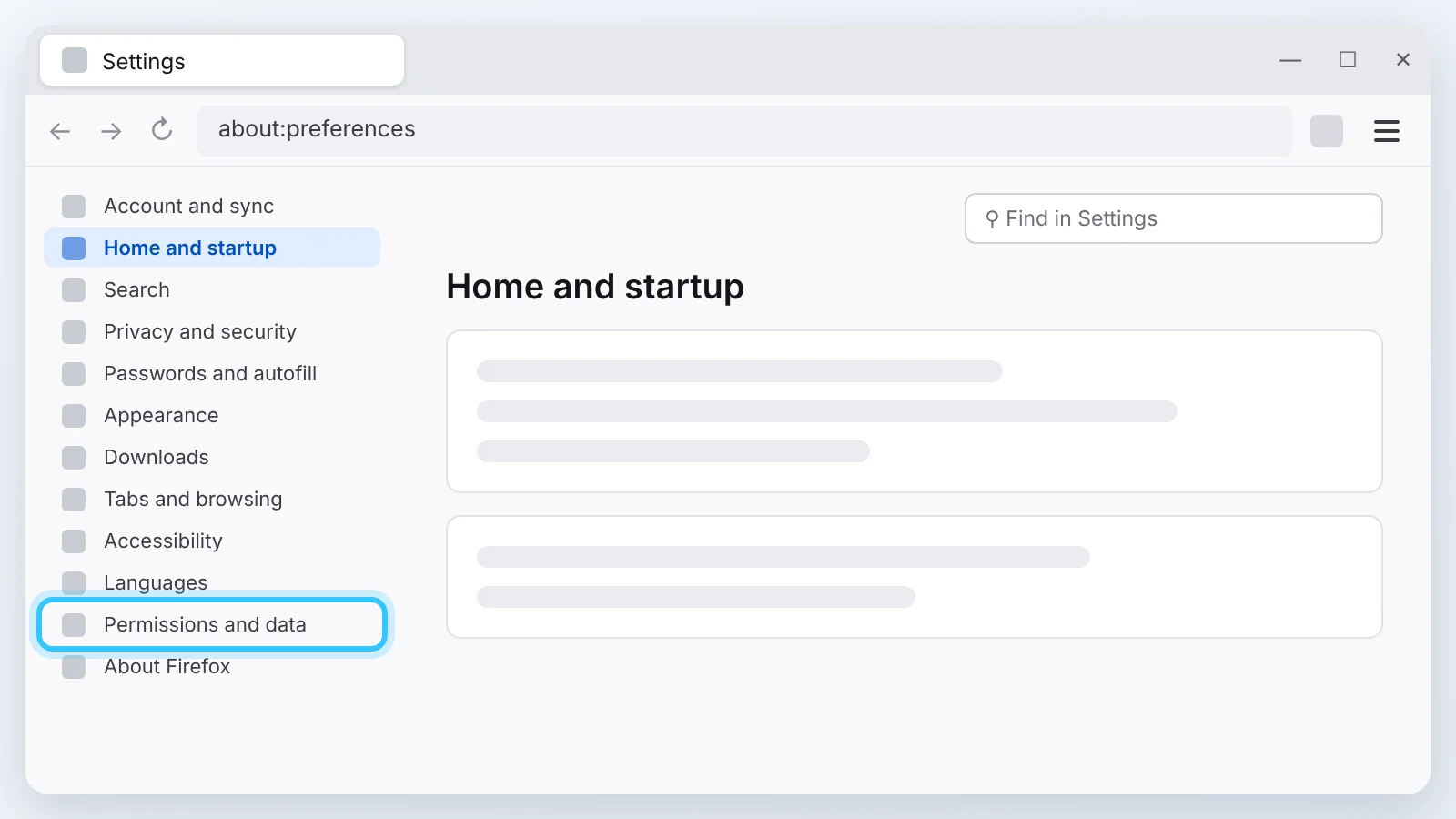
On the left, click Permissions and data.
Step 3
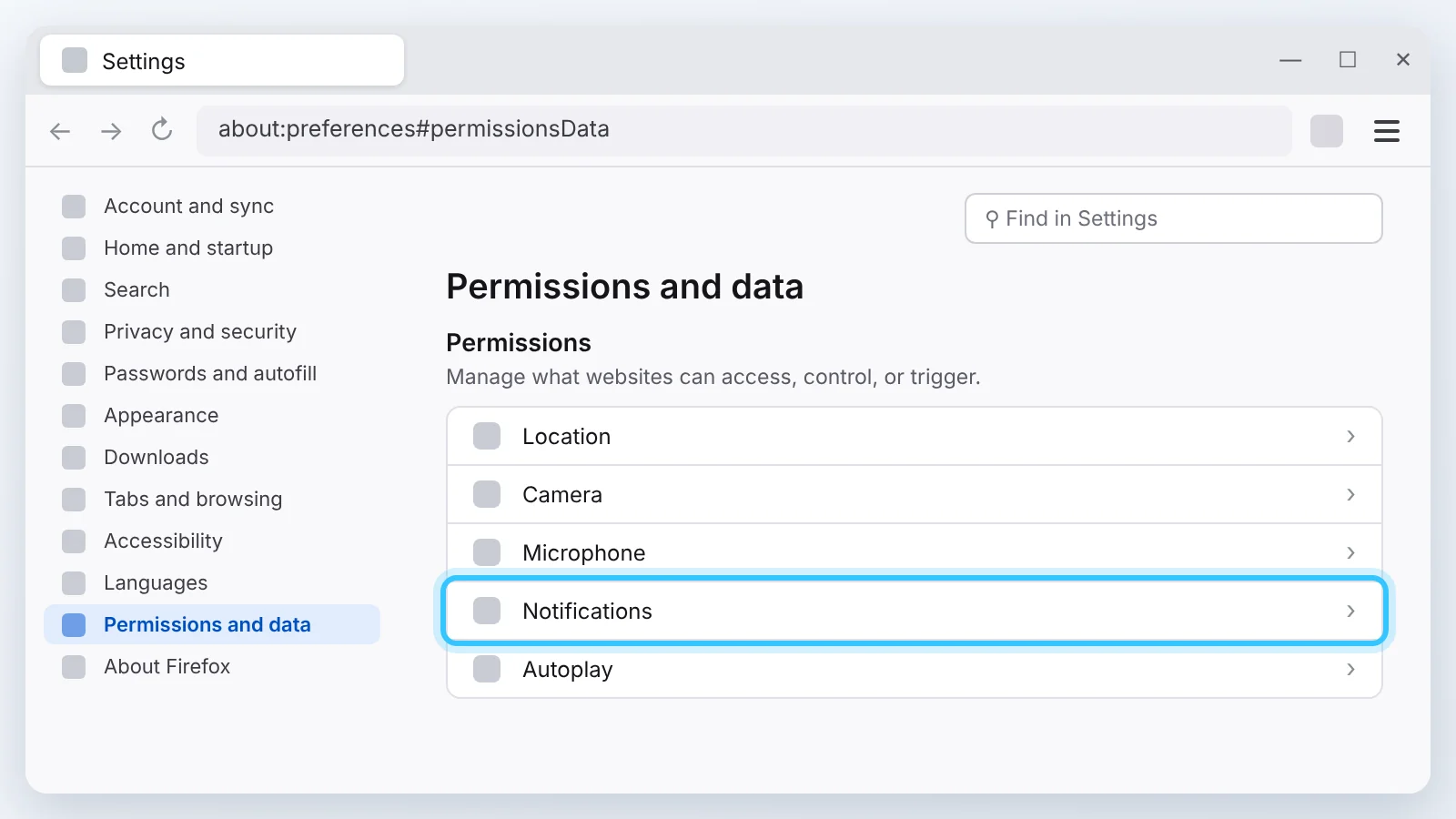
Under Permissions, click Notifications.
Step 4
Find the site in the list. In its Status column, choose Block (1), then click Save changes (2).
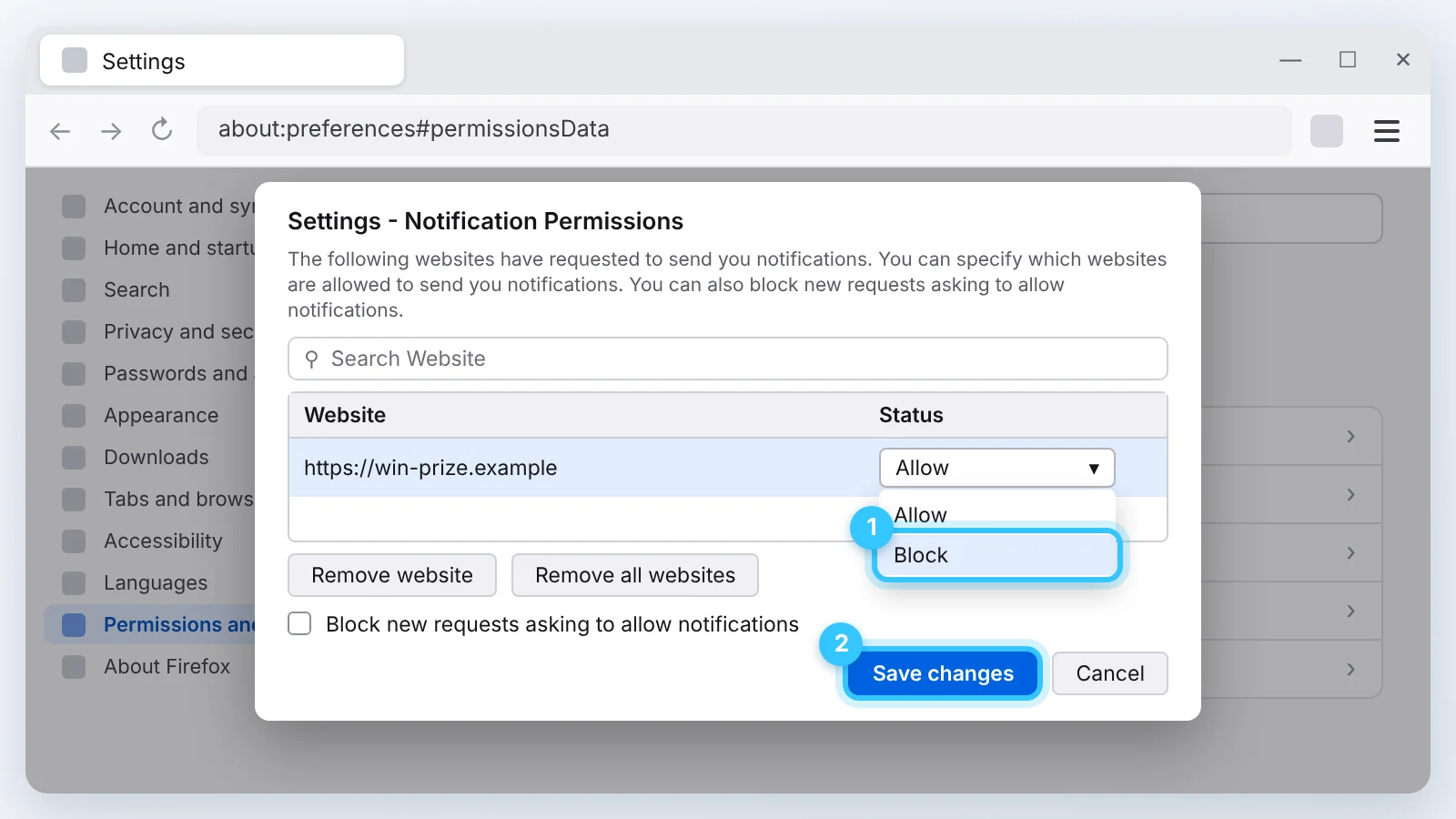
Done. The notifications stop at once. To stop all sites from asking, tick “Block new requests asking to allow notifications” in the same window.
The pictures are simplified and show Firefox 159 for Windows. The menu names are Firefox’s own. In older versions, Notifications is under Privacy & Security → Permissions.