If ads or virus warnings keep popping up on your phone, a site has permission to send you notifications. Remove that permission in Chrome on your phone. It takes about a minute.
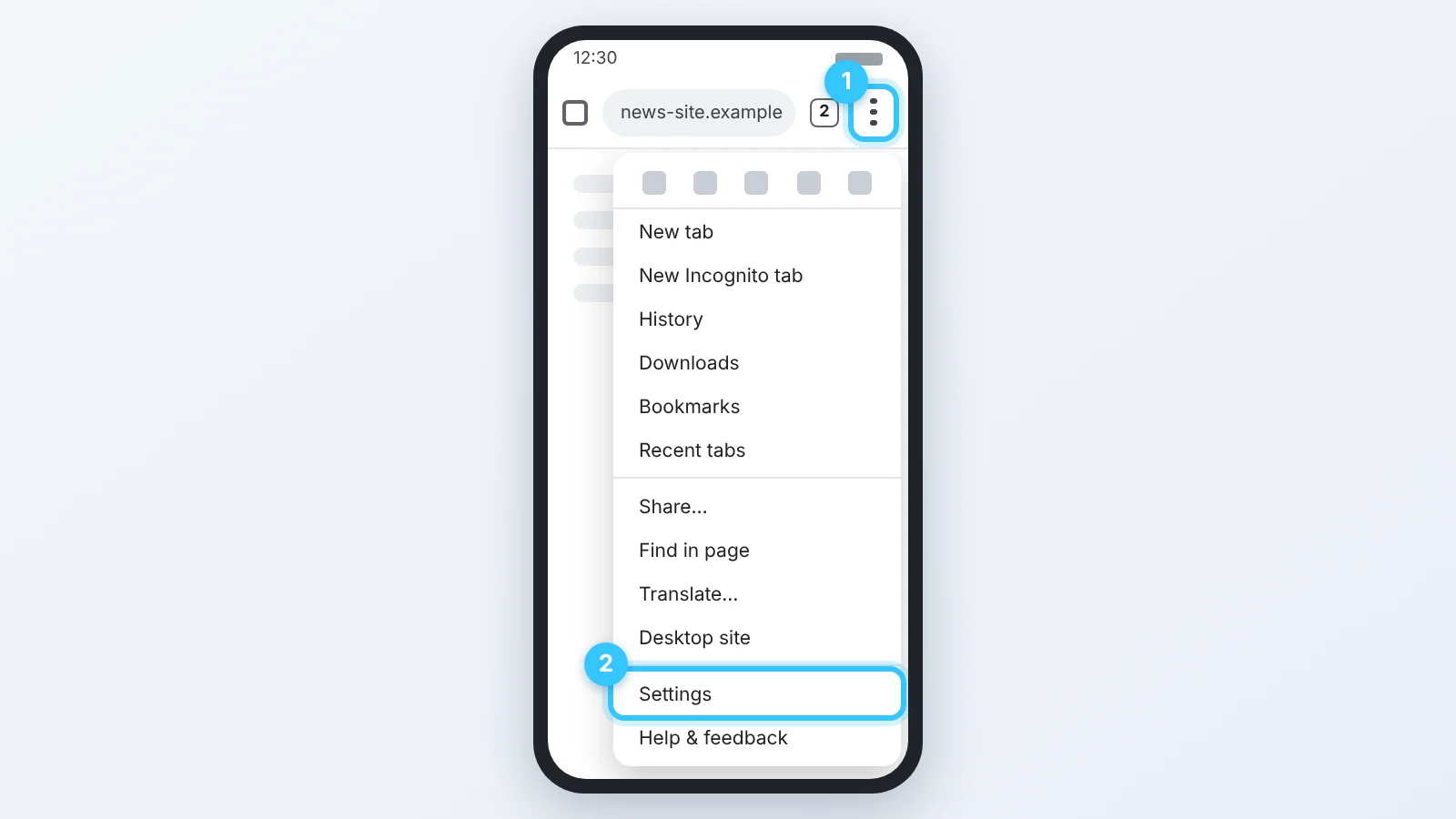
Step 1
In Chrome, tap the menu ⋮ (1) and tap Settings (2). The menu is in the top right corner, or bottom right if your address bar is at the bottom.
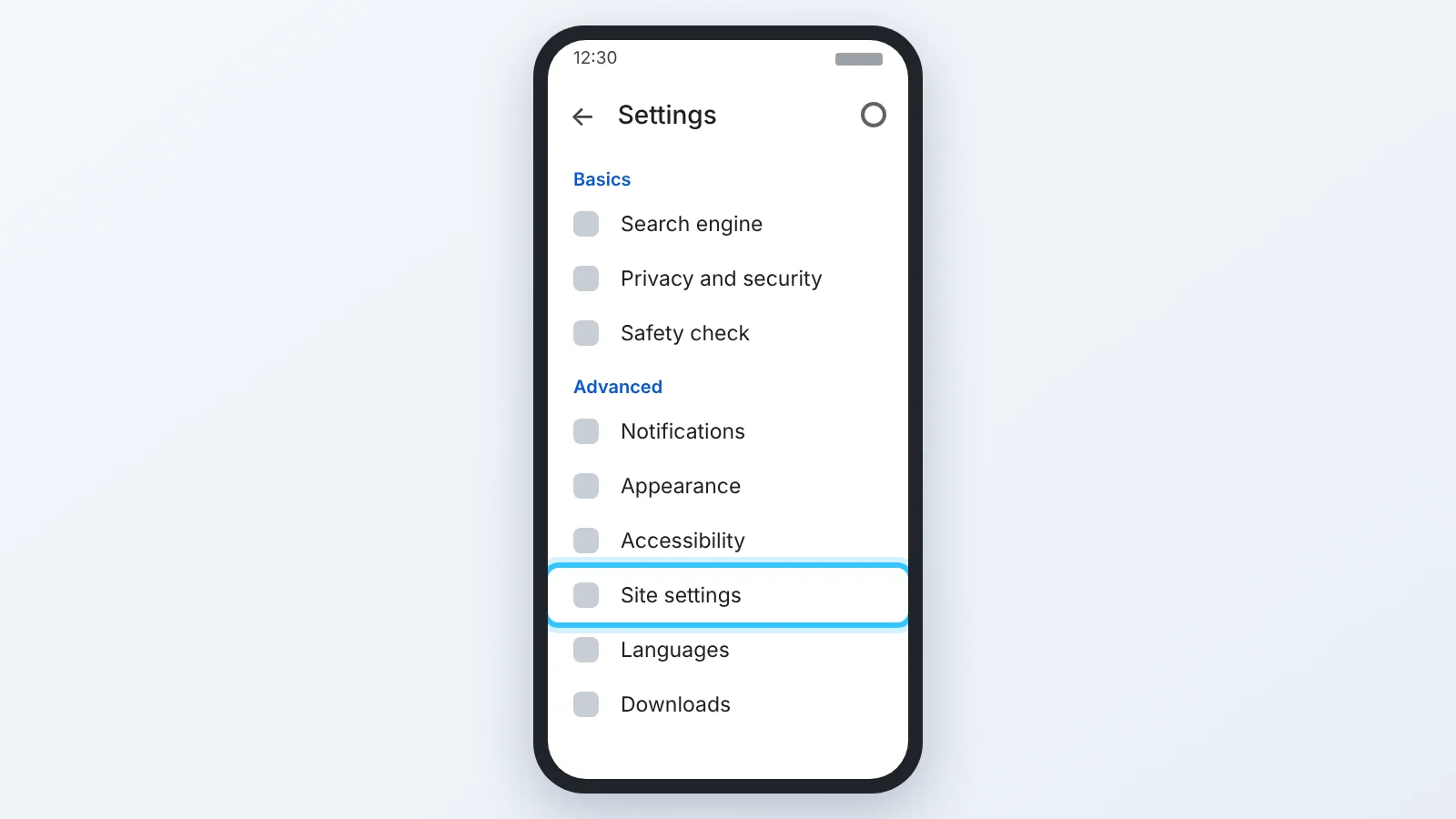
Step 2
Tap Site settings.
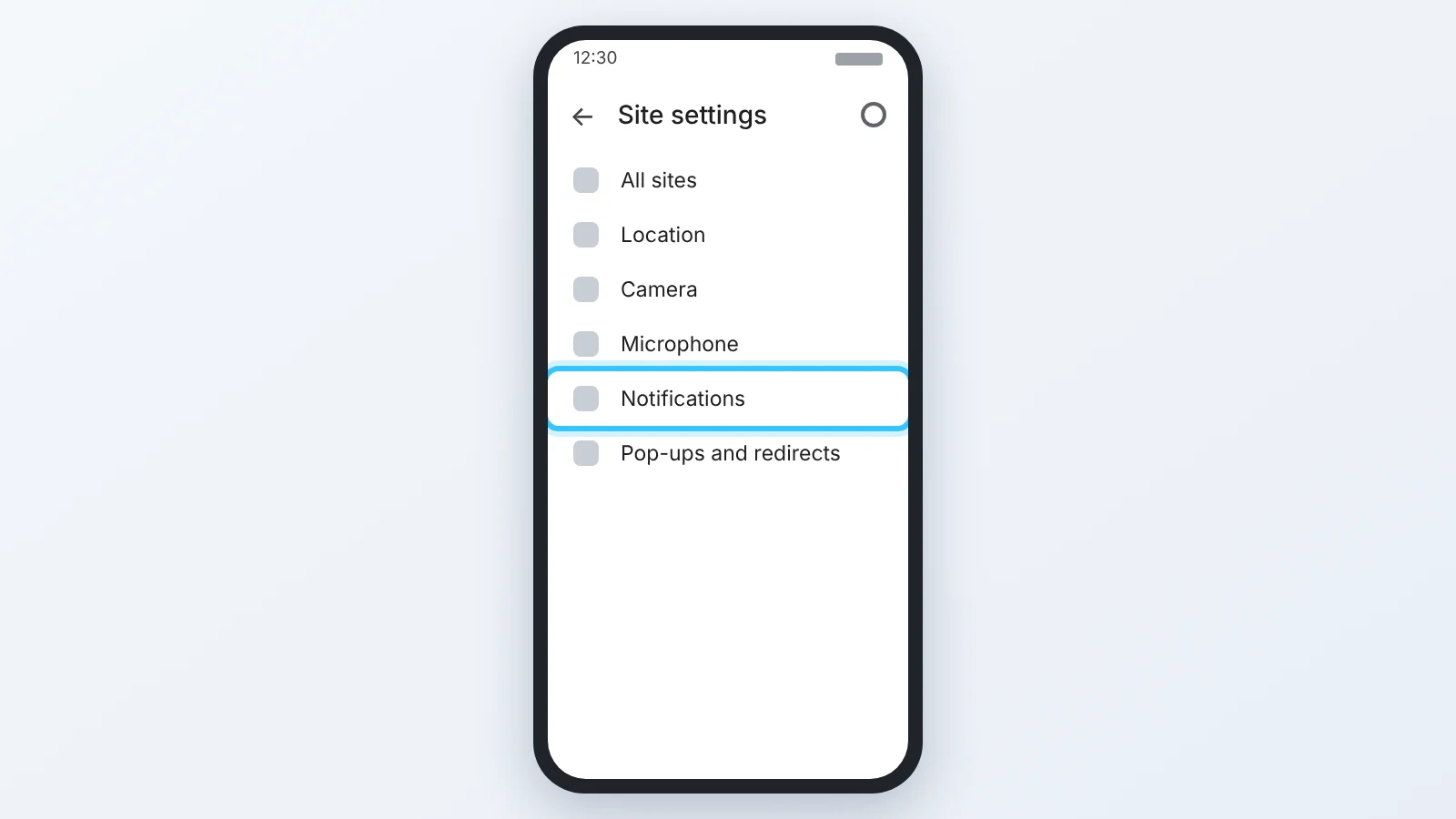
Step 3
Tap Notifications.
Step 4
Under “Allowed”, tap the site (1). Android opens the site’s notification settings: turn off the switch (2).
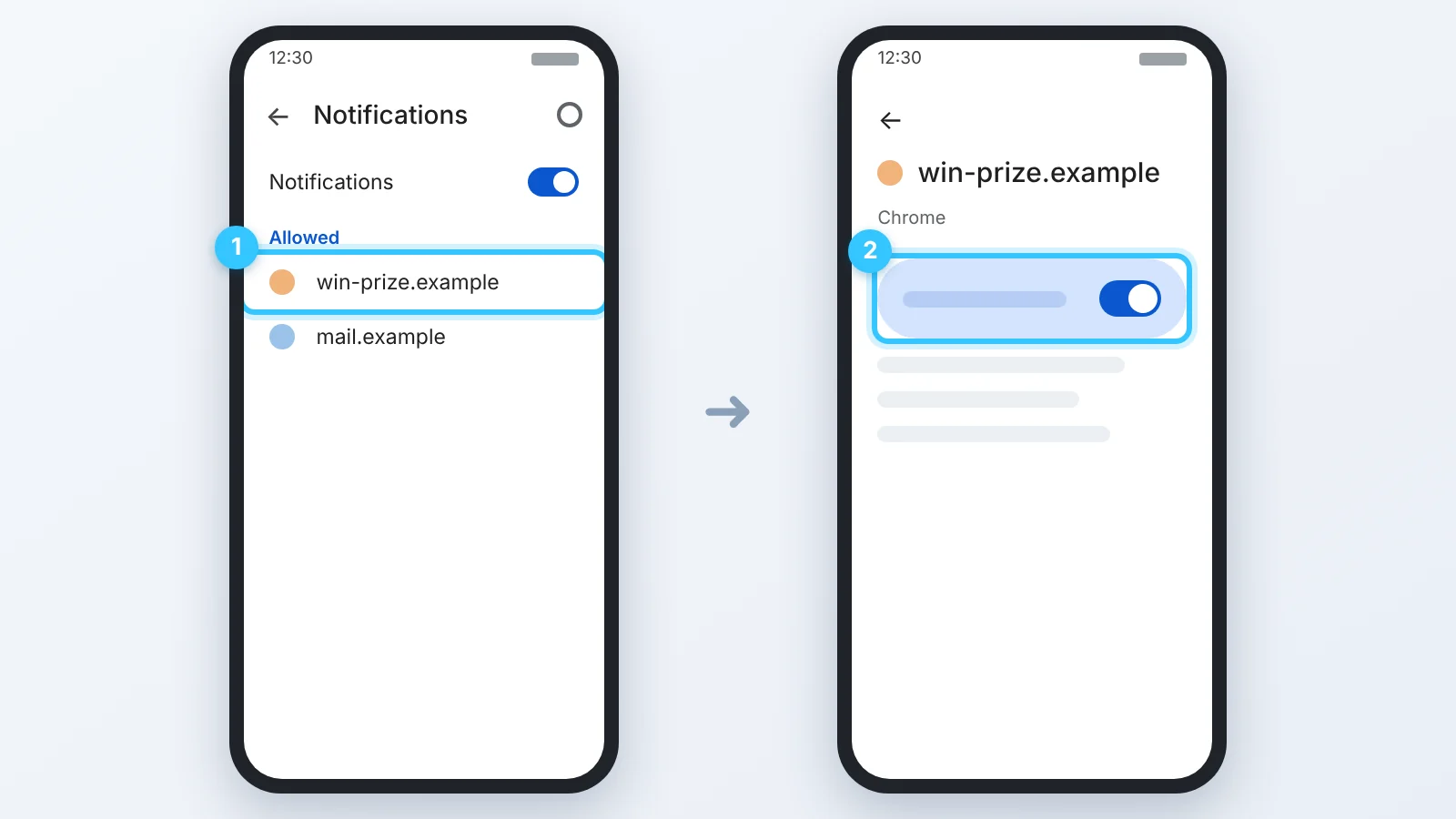
Done. The notifications stop at once. To stop all sites from asking, turn off the Notifications switch at the top of the list in step 4.
The pictures are simplified and show Chrome on Android. The menu names are Chrome’s own; the last screen is Android’s and looks a little different on each phone.