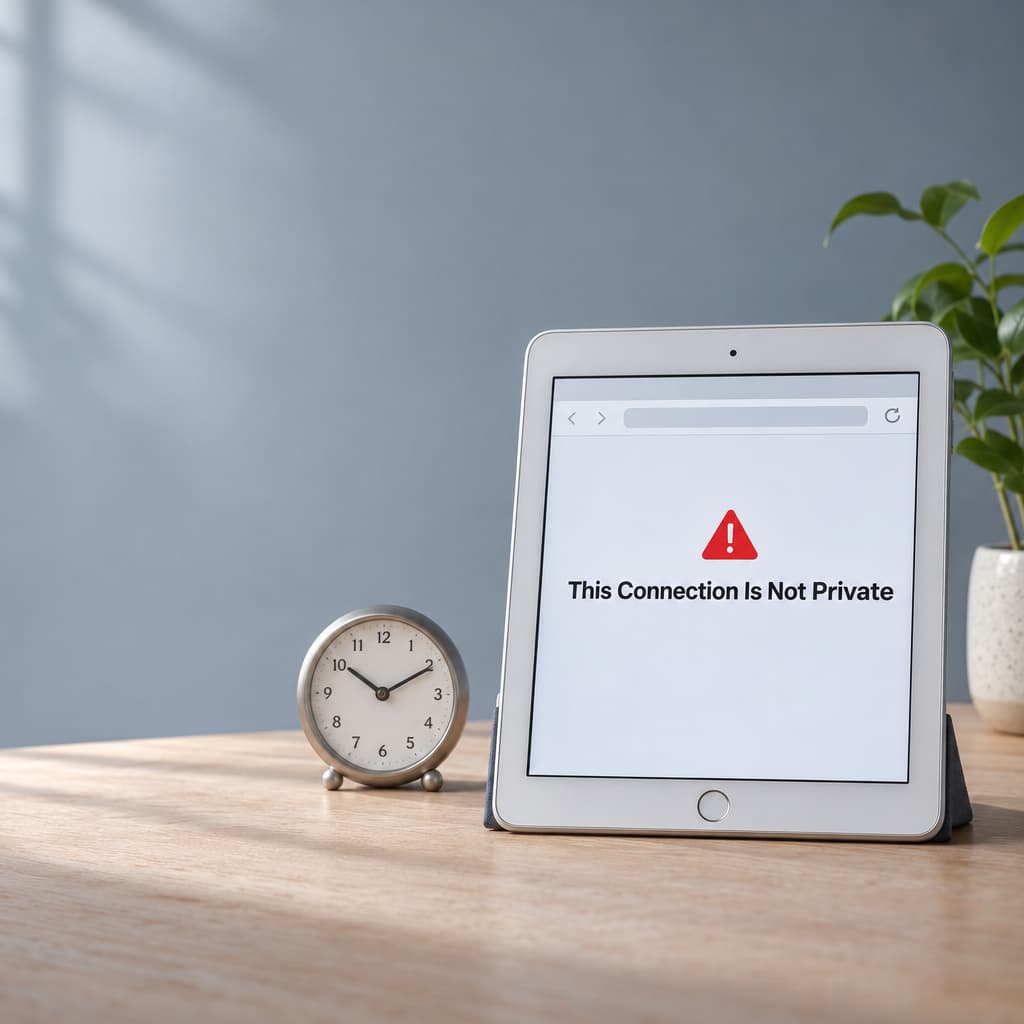
After updating an older iPad to iPadOS 17.7, you may see “This Connection Is Not Private” on every website you try, including Google and Apple’s own site. The failure can spread well beyond Safari. The App Store may stop downloading or updating apps, Mail may stop syncing, and other apps that rely on secure connections may refuse to sign in or load content. The iPad can show that it’s connected to Wi-Fi while much of what you use it for stops working. See the reports on Reddit.
Reddit users reported two workarounds. Start with Location Services and the time zone. It takes a few minutes, requires no downloads, and fixed the problem on my iPad running 17.7.11. The certificate workaround helped some users on earlier 17.7 releases.
Fix 1. Turn Off Location Services and Set the Time Zone Manually
On my iPad, the automatic time zone never finished loading. Here’s what got Safari working again.
- Open Settings → Privacy & Security → Location Services and turn Location Services off.
- Open Settings → General → Date & Time and turn Set Automatically off.
- Tap Time Zone, search for your city or a nearby city in the same time zone, and select it.
- Check the date, year, and local time against a phone or computer that shows the correct time. Adjust them manually if needed.
- Open a new Safari tab and try apple.com and google.com. Then check the App Store, Mail, and any other apps that were failing.
If the websites load, stop here. After this fix, I disabled Full Trust for the certificates I had imported while troubleshooting, and Safari still worked. The imported certificates were unnecessary on my iPad.
Fix 2. Install the Matching Root Certificates
Some Reddit users with similar errors on iPadOS 17.7.5 and 17.7.10 reported that manually installing Apple Root CA – G2 and Apple Root CA – G3 helped. Others saw no improvement. If the time zone fix fails, download certificates directly from the issuing organization and use the exact names below. See the certificate workaround on Reddit.
Download the Files on an iPhone
Open these links in Safari on an iPhone that can browse normally. Save the files to Files → Downloads. If tapping a link opens a profile prompt on the iPhone, go back, touch and hold the link, and choose Download Linked File. Use the iPhone to download and send the files to the iPad.
If Safari’s certificate details show Apple Public EV Server RSA CA 1 - G1, the root for that chain is DigiCert Global Root G2. It’s a separate certificate from Apple Root CA – G2 and DigiCert Assured ID Root G2. Apple already lists DigiCert Global Root G2 in the iPadOS 17 trust store, so manually installing it is a troubleshooting step with mixed results. If you test it, use the DER/CRT download for the exact entry on DigiCert’s official certificate list.
AirDrop and Install One Certificate at a Time
- Turn on Wi-Fi and Bluetooth on both devices. Turn off Personal Hotspot if it’s on. Keep the devices close together and the iPad unlocked.
- On the iPad, go to Settings → General → AirDrop → Everyone for 10 Minutes.
- On the iPhone, open Files → Browse → Downloads. Touch and hold the first certificate, then tap Share → AirDrop and choose the iPad.
- On the iPad, tap Accept if prompted. If the certificate opens in Files or is saved there, tap the file to open it.
- Open Settings → Profile Downloaded. If you don’t see that entry, check Settings → General → VPN & Device Management. Select the downloaded profile, tap Install, and follow the prompts.
- Finish installing the first certificate before sending the next one. iPadOS keeps only one downloaded profile ready to install at a time.
Enable Full Trust and Test Again
On the iPad, go to Settings → General → About → Certificate Trust Settings. Under Enable Full Trust for Root Certificates, turn on the switch for each certificate you deliberately installed. Installing the profile alone doesn’t enable SSL trust. See Apple’s certificate trust instructions.
Open a new Safari tab and retest. If you’re testing DigiCert Global Root G2, use DigiCert’s active G2 test page. If the workaround makes no difference, turn Full Trust back off for the roots you added during troubleshooting.
Apple Should Have Fixed This by Now
More than a year after users reported these failures on iPadOS 17.7.10, I still ran into them on 17.7.11. The two workarounds may point to different problems that produce the same warning. Either way, an iPad that suddenly can’t open Apple’s own website, fetch mail, or use the App Store has lost basic functionality. It’s a shame that owners of older iPads are still left digging through Reddit for a fix. Apple owes those users a clear diagnosis and a supported recovery path.