When UnHackMe flags suspicious files or processes, follow this method to determine if they are malicious and take appropriate action.
Step-by-Step Investigation
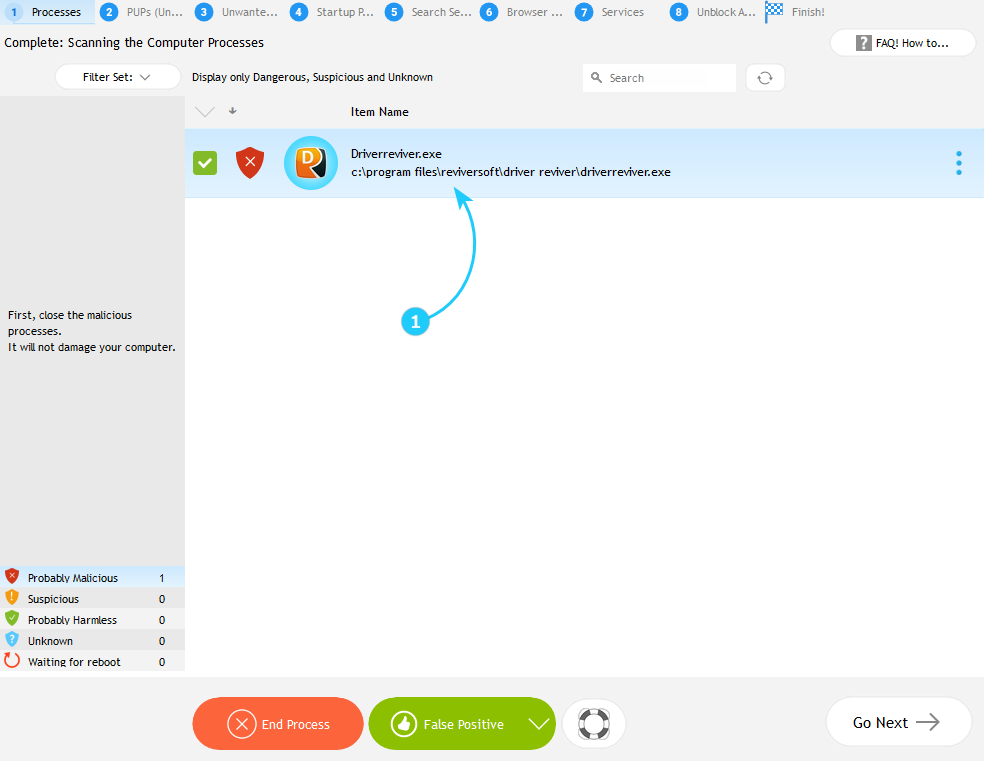
- Examine the item status by selecting it and double-clicking its icon.
- The menu on the left shows whether file or process is malicious or not. To get more information click the question mark button.
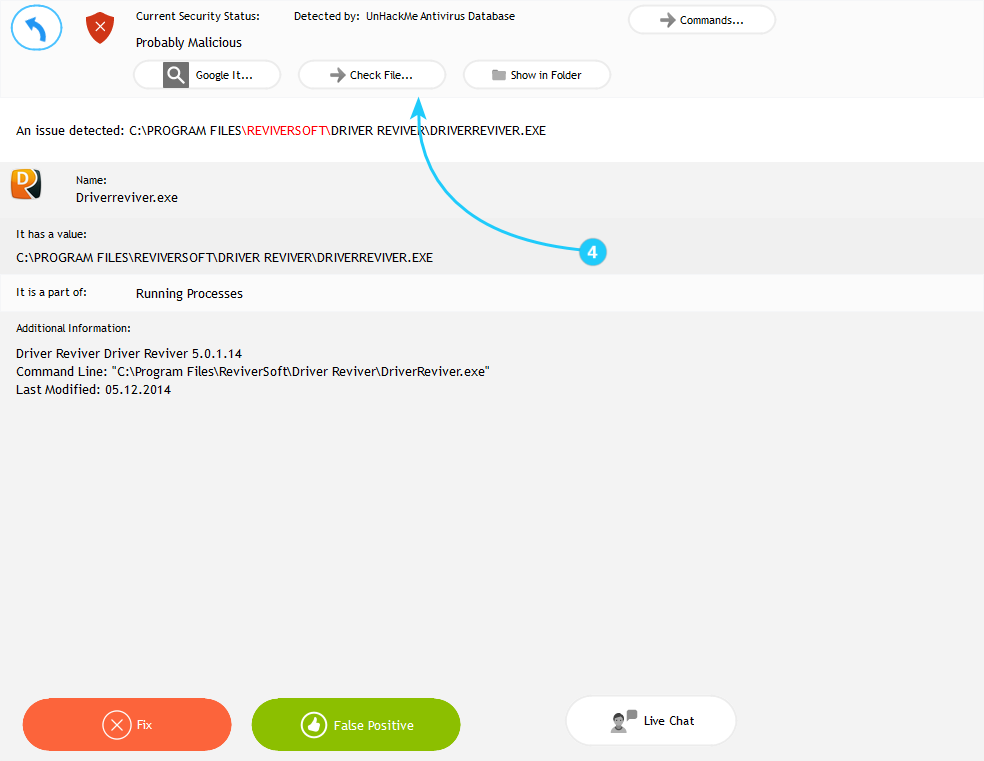
- Review key details in the properties window, which include Security Status of the file, name, detection source, command line, and others.
- Analyze threat indicators by clicking Check File button.
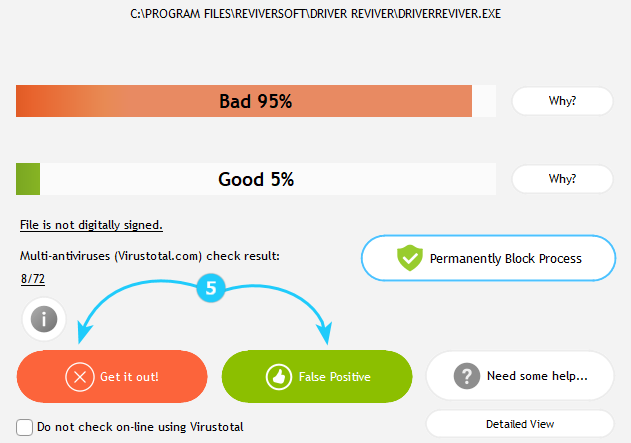
- This screen shows the likelyhood of the file or process being malicious (higher the percentage of Why Bad - more dangerous it is, higher the percentage of Why Good - more possibilities for false positives). You can click Why Bad and Why Good buttons for the explanations on those percentages.
To initiate the removal process click Get it out! button. If selected file or process isn't malicious, click False Positive.


While you now can effectively evaluate potentitally dangerous files, keep in mind that even legitimate files may occasionally be flagged as threats. To learn more about why this happens and how to handle such cases, proceed to the "Why a Legitimate File Marked as Dangerous" guide.
