Malware can alter your browser settings, changing your homepage, search engine, and new tab behavior. UnHackMe helps detect and repair these unauthorized modifications while giving you control over false positives.
Fixing Browser Hijacking
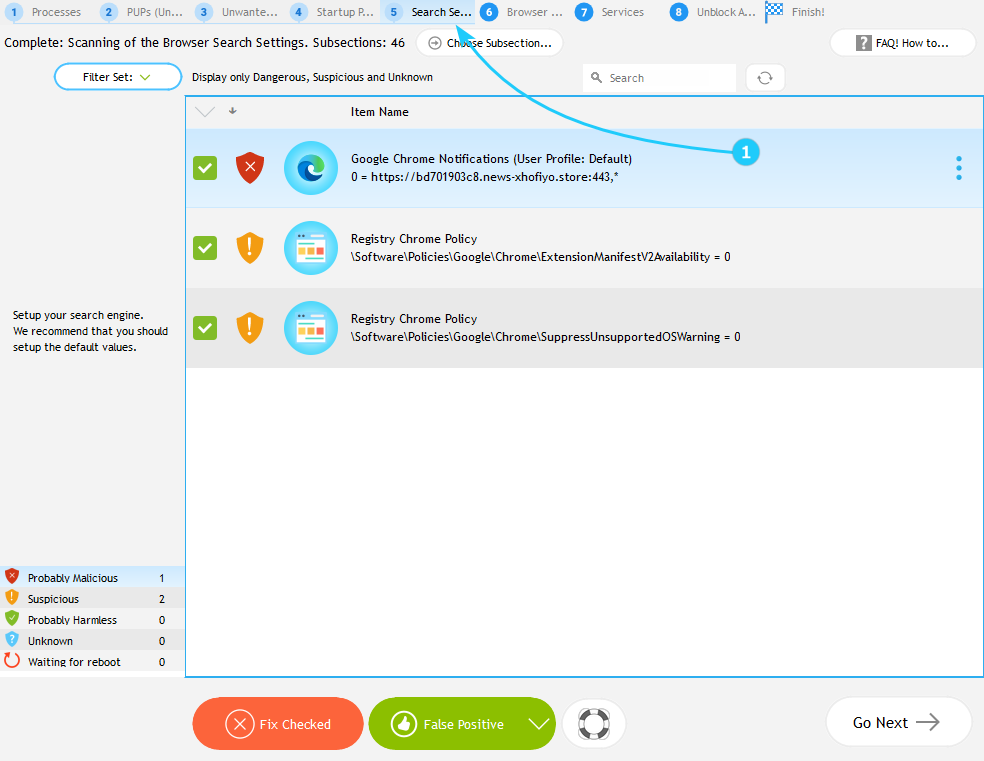
- UnHackMe scans and identifies suspicious changes in supported browsers, including Google Chrome, Microsoft Edge, Mozilla Firefox, Internet Explorer, Yandex Browser, and more. After scanning, you'll see a list of detected modifications. To access it, select the Search Settings tab (number 5) in the scan results window.
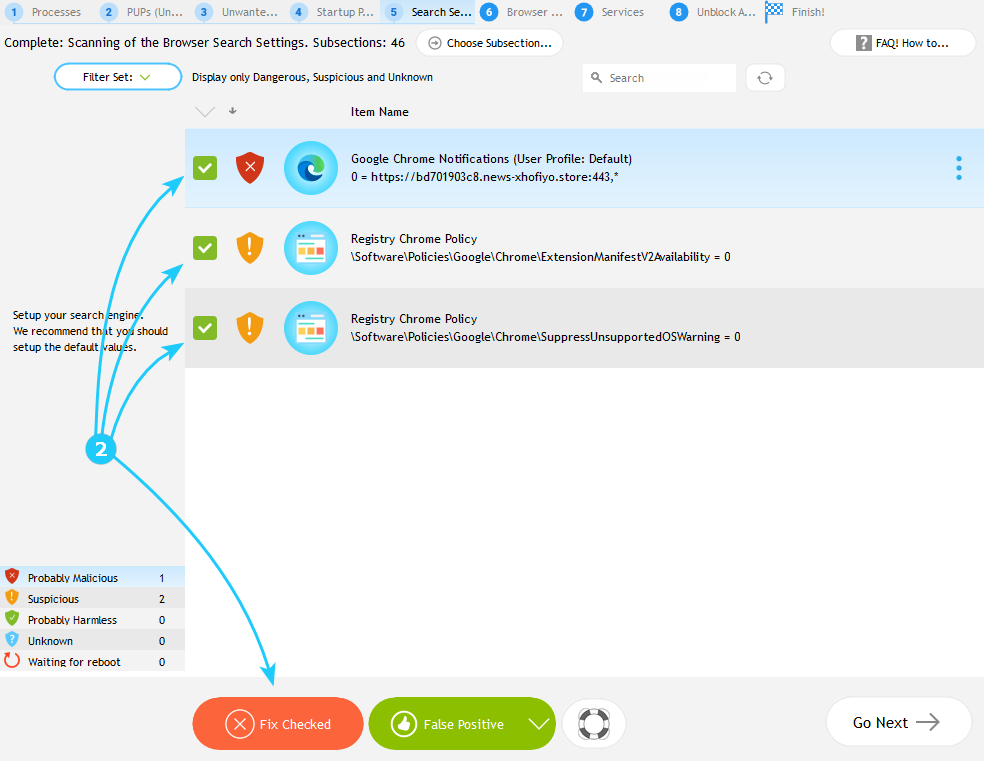
- UnHackMe highlights known malware-related changes with red symbol. Select the suspicious settings by checking the boxes next to them, then click Fix Checked button to revert the selected changes.
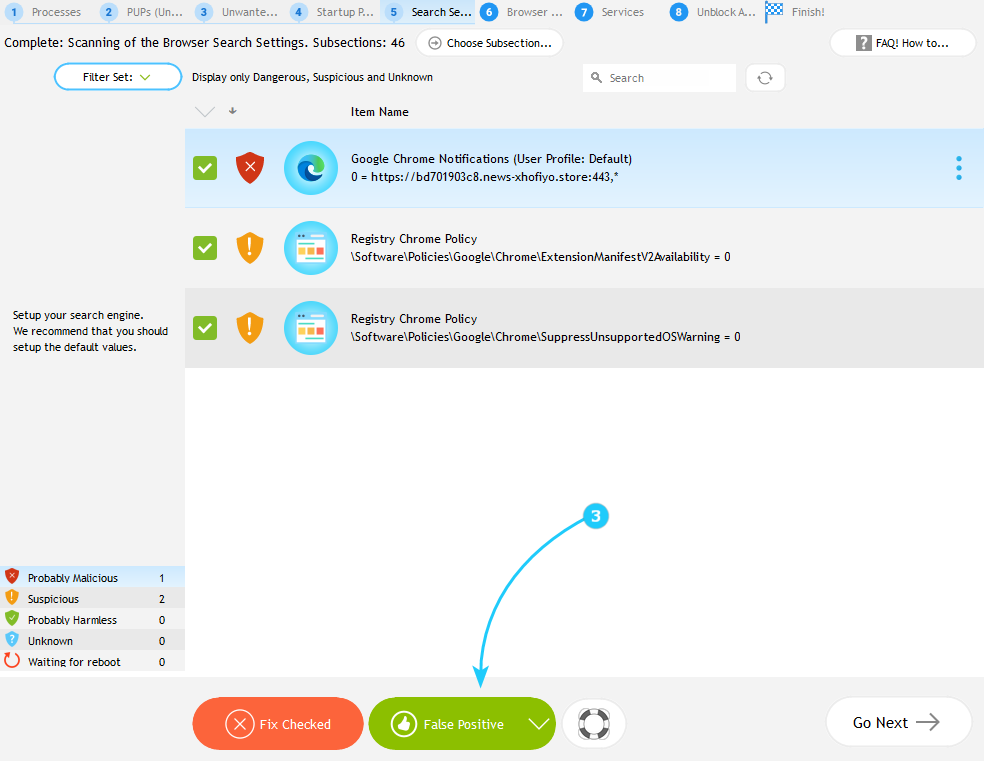
- If UnHackMe flags a trusted setting (e.g., a custom homepage you set yourself), select it and click the False Positive button. This ensures UnHackMe won't flag it in future scans.
- After you're done, restart your browser to apply changes. Monitor browser behaviour - if issues persist, re-scan and fix remaining threats. Remember to make periodic scans to ensure the safety of your system.
You've learned how to fix browser-hijacking malware. Let's keep going through the scan results window to the next tab! Proceed to the "How to Fix Malware Extensions" guide.
