UnHackMe detects and helps eliminate malicious files that may be locked or hidden. This guide explains how to safely remove threats while preserving legitimate files.
Removing Unwanted Files
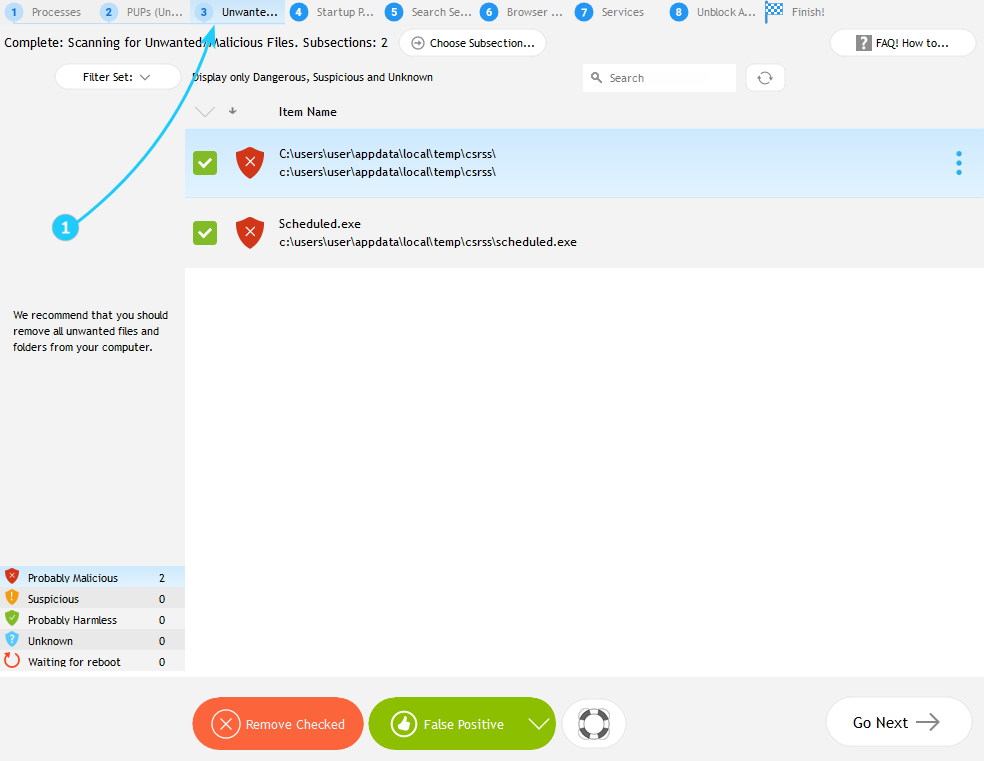
- In the scan results window, navigate to Unwanted Files tab (number 3) to inspect threats detected by UnHackMe.
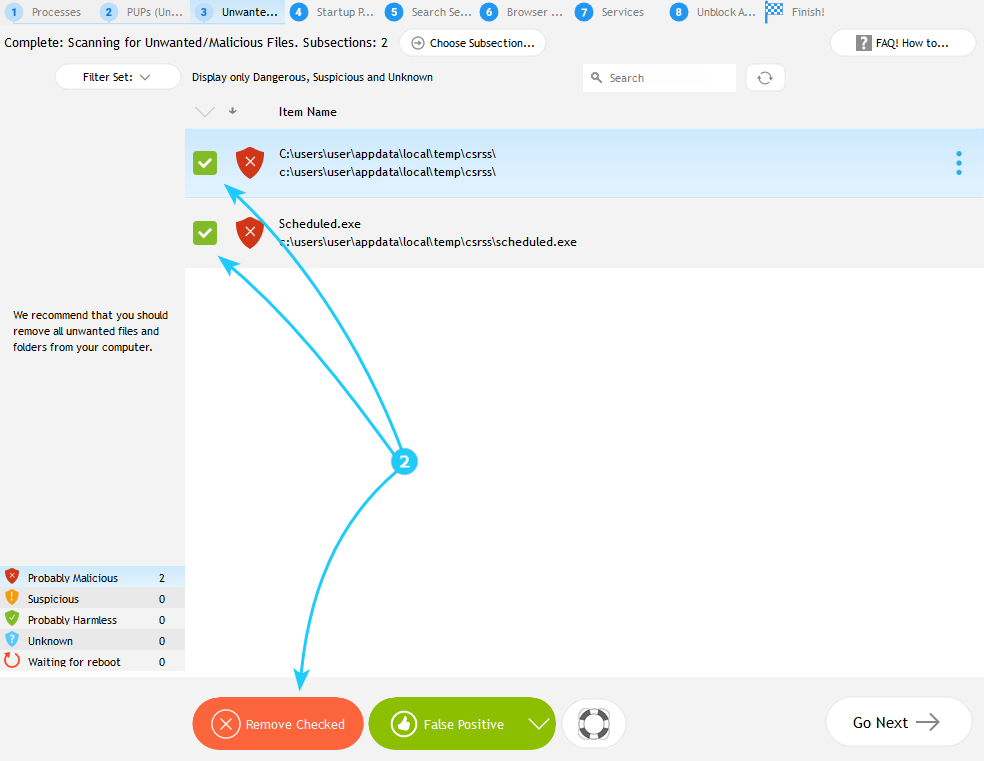
- UnHackMe highlights known malicious files with red symbol. Select the unwanted files by checking the boxes next to them, then click Remove Checked button to to initiate the deletion of the selected items.
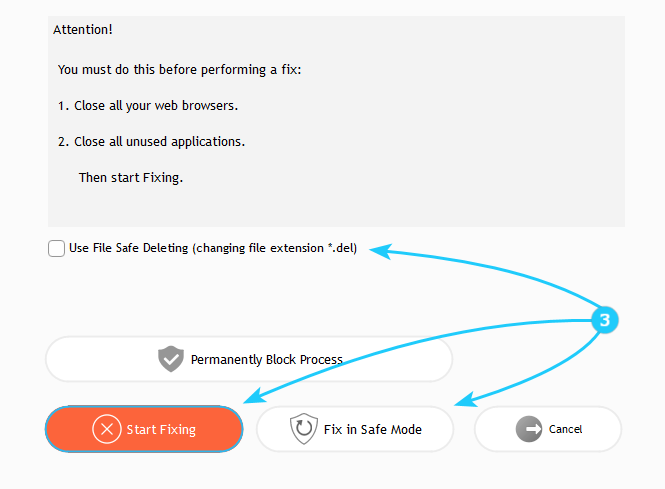
- Before proceeding, close all browser and applications and save all your ongoing work, then configure the removal method by checking the preferred options. Those include File Safe Deleting (which renames to .del instead of deletion). Use Fix in Safe Mode button for persistent malware and locked files.
- If a safe file is incorrectly flagged, select it and click False Positive.
- Unlike older versions, UnHackMe now uses safer quarantine methods without relying on System Restore points. After you're done, restart your computer to complete deletion of locked files, then run a follow-up scan to verify all threats are cleared. For persistent malware, try Safe Mode scan.

You've learned how to delete unwanted files from your system. Let's keep going through the scan results window to the next tab! Proceed to the "How to Remove Malware from Windows Startup" guide.
