Malware often creates hidden startup entries to reactivate after reboots. UnHackMe scans all startup locations to detect and remove these persistent threats.
Removing Malicious Startup Items
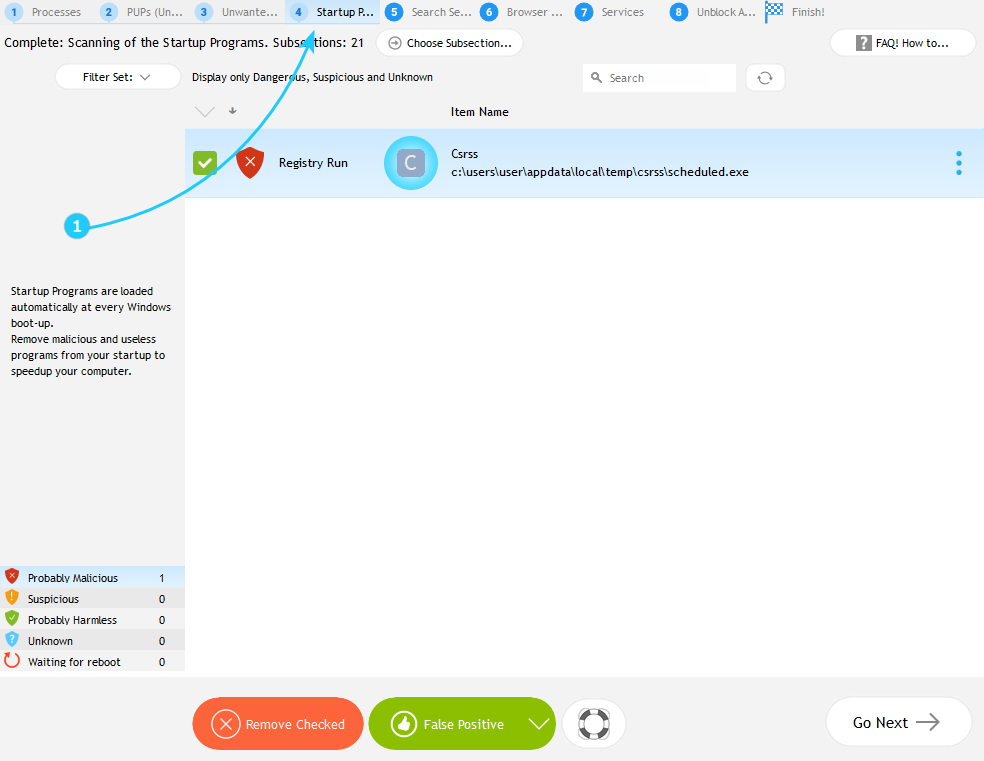
- In the scan results window, navigate to Startup Programs tab (number 4) to inspect the malicious startup items detected by UnHackMe. UnHackMe checks registry startup keys (HKCU\Run, HKLM\Run, etc.), startup folders, scheduled tasks, program shortcuts, and other auto-run locations.
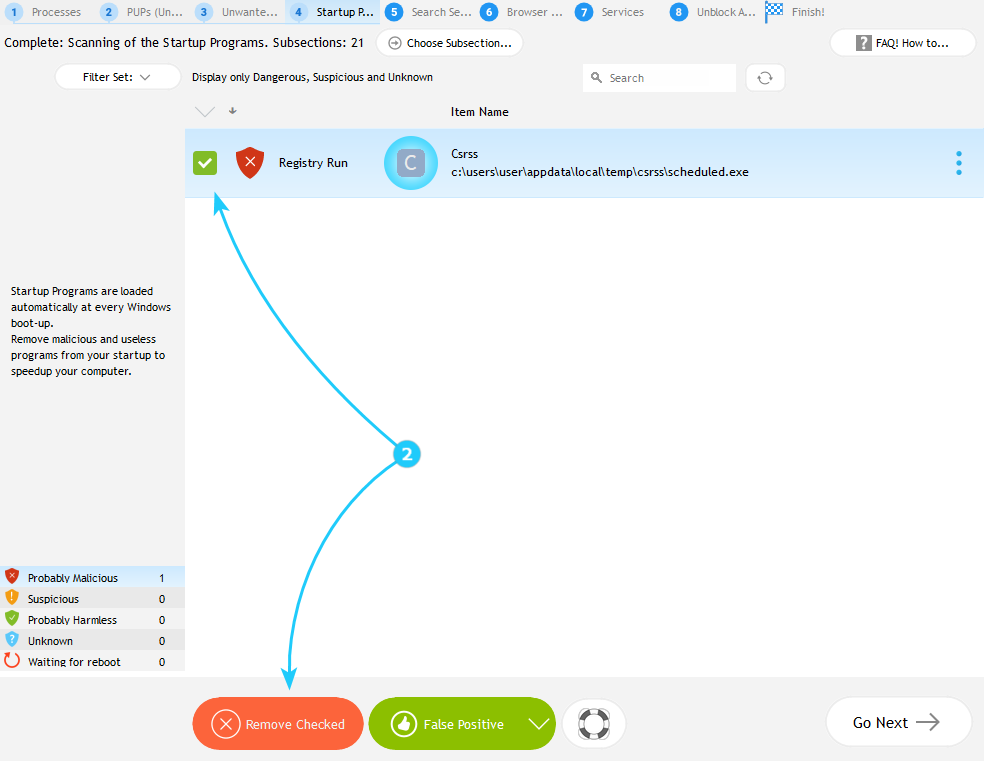
- UnHackMe highlights known malicious entries with red symbol. Select the confirmed malicious items by checking the boxes next to them, then click Remove Checked button to to initiate the removal process.
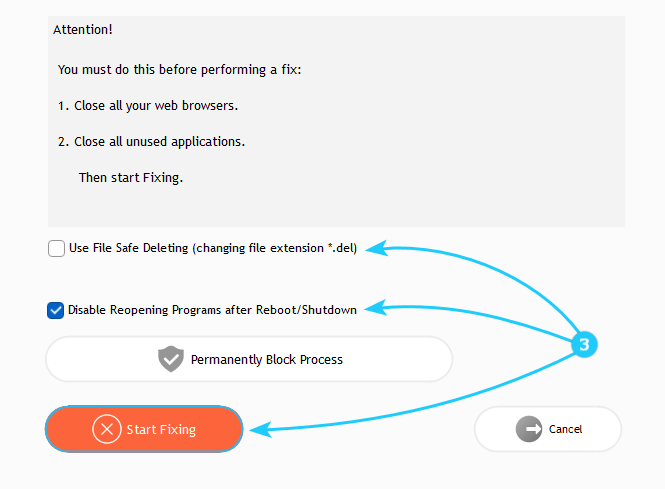
- Before proceeding, close all browser and applications and save all your ongoing work, then configure the removal method by checking the preferred options. Those include File Safe Deleting (which renames to .del instead of deletion), and disabling the reopening of the programs after reboot.
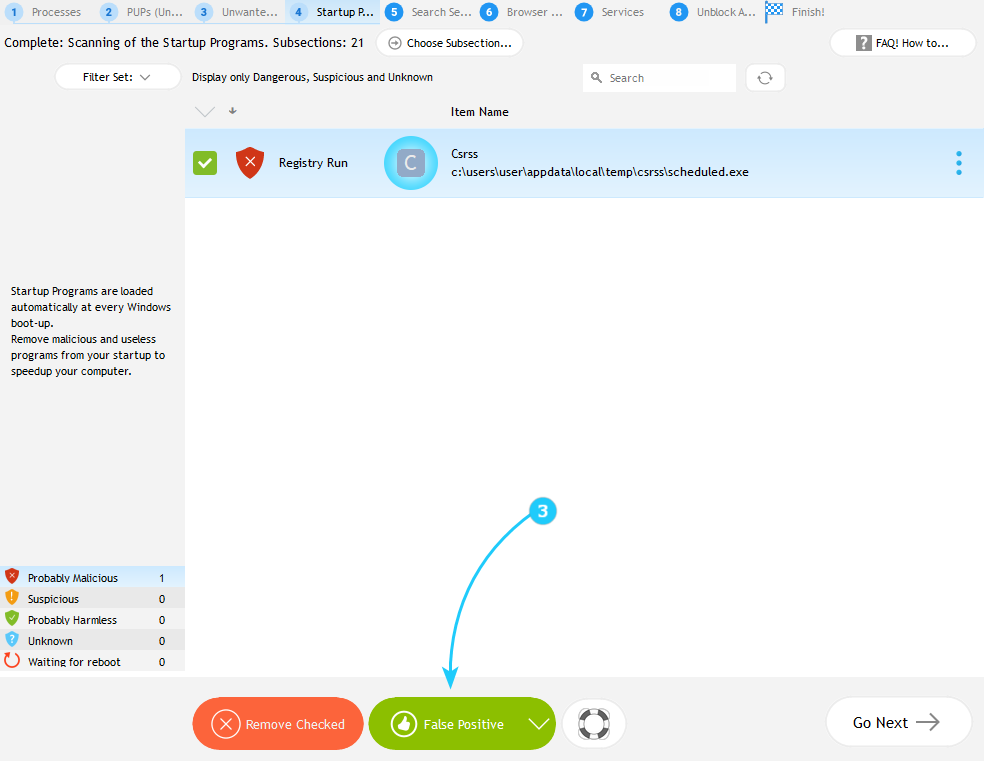
- If a safe file is incorrectly flagged, select it and click False Positive.
- After you're done, restart your computer, then verify malicious entries hasn't reappeared in Startup tab of Task Manager and UnHackMe's startup scanner. For stubborn cases, run a Safe Mode scan.
You've learned how to delete unwanted files from your system. Let's keep going through the scan results window to the next tab! Proceed to the "How to Fix Browser-Hijacking Malware" guide.
