Malicious browser extensions, also known as malware plugins or add-ons, pose a serious threat to your online security. Cybercriminals design these extensions to hijack your browsing experience, redirecting your searches to harmful websites, stealing sensitive data, and even capturing login credentials, banking details, or cryptocurrency wallets. If left unchecked, these extensions can lead to identity thet, financial loss, and further malware infections.
UnHackMe provides a reliable way to detect and eliminate such threats.
UnHackMe provides a reliable way to detect and eliminate such threats.
How to Remove Malicious Browser Extensions
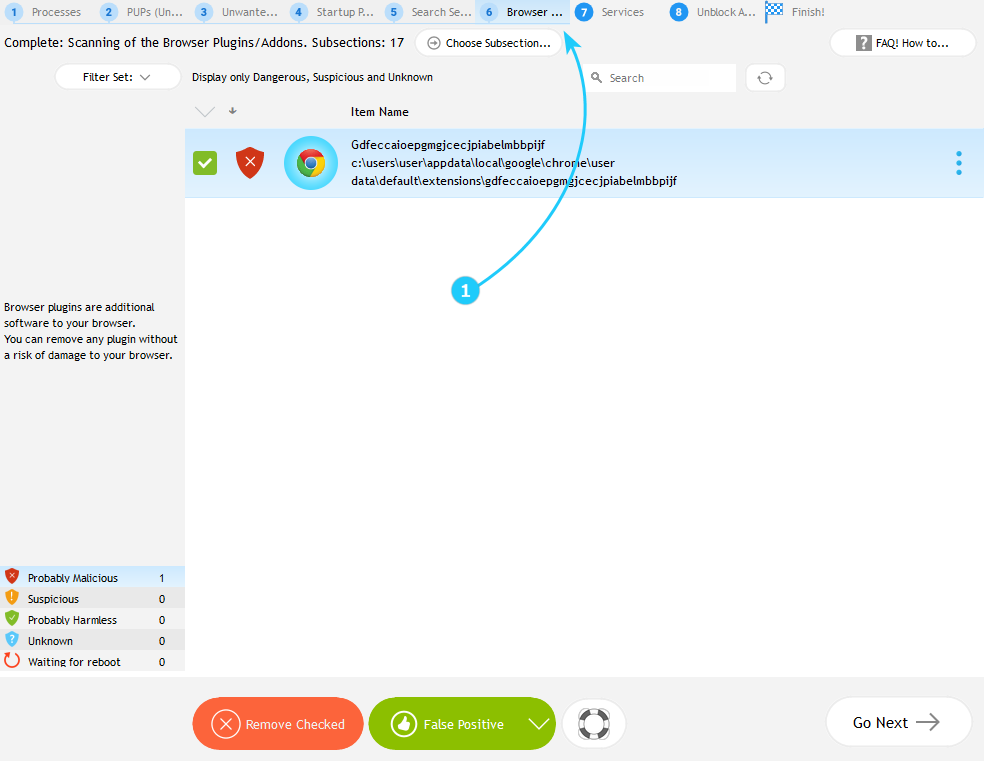
- After UnHackMe completes the scan, navigate to Browser Plugins tab (number 6) to review the list of detected malicious extensions.
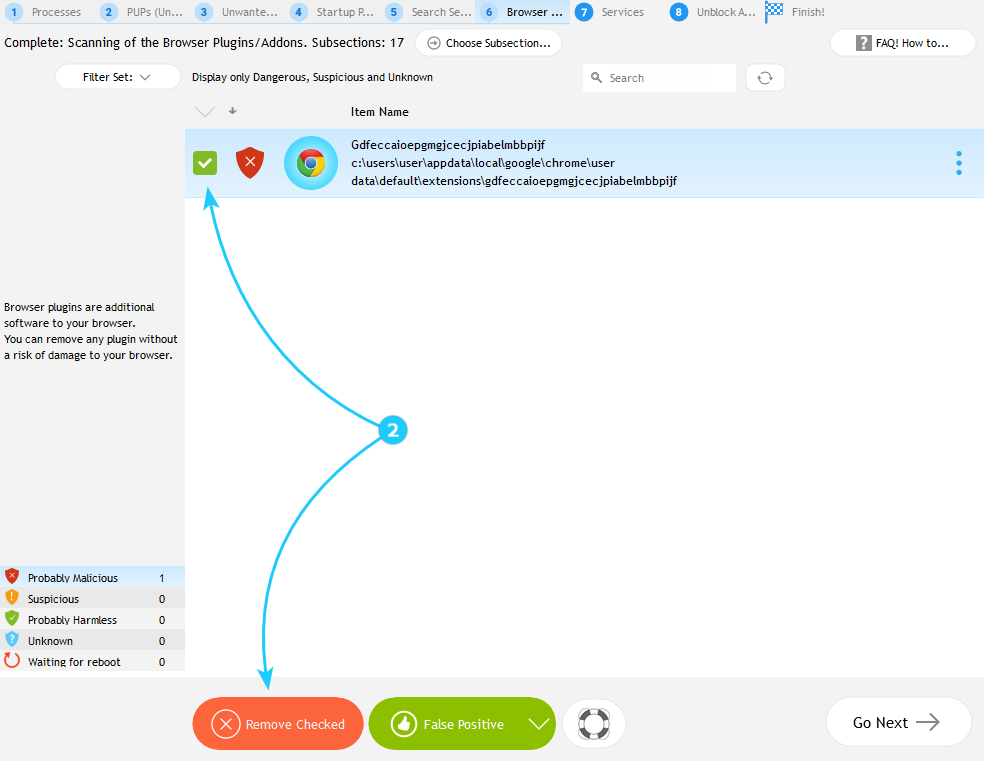
- Carefully examine each entry and check the boxes next to the extensions you wish to remove. UnHackMe highlights known malicious files with red symbol. Select the extensions you want to remove by checking the boxes next to them, then click Remove Checked button to to initiate the deletion process.
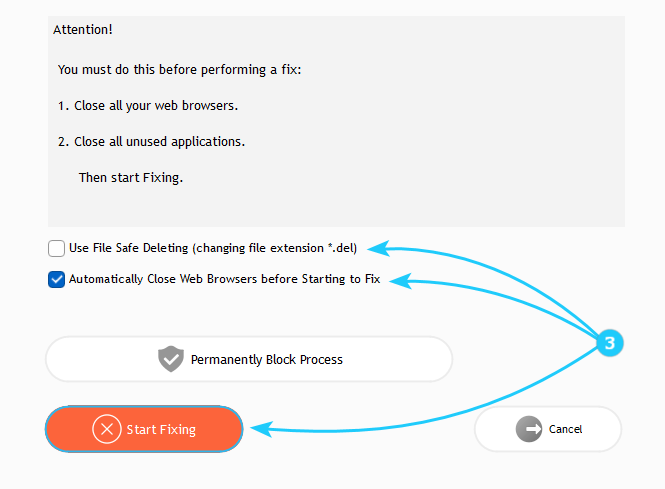
- A new window will appear with additional options for the removal process. Review these settings and adjust them according to your preferences. When ready, click Start Fixing to initiate the cleanup.
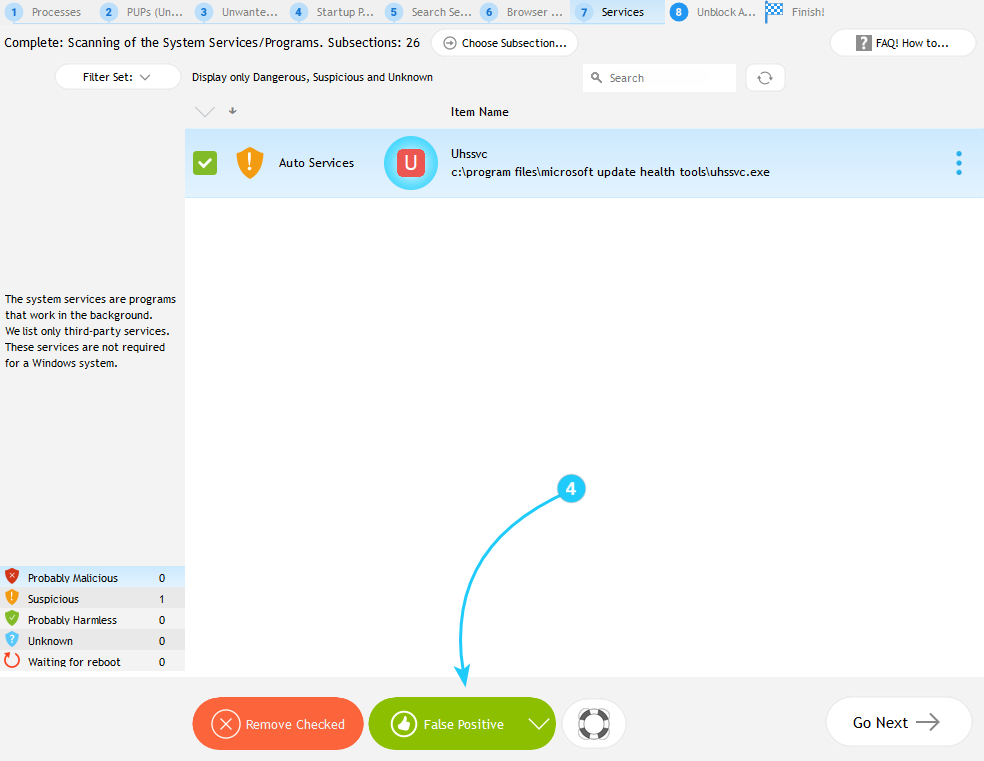
- If you believe that the extension is flagged incorrectly, select it and choose False Positive.
- After the removal process completes, restart your browser to ensure all changes take effect. To further confirm that the malicious extensions are gone, maually check your browser's extension or add-on settings. If any remnants remain, repeat the scan and removal process.
Removing malware extensions promptly is crucial to protecting your personal and financial information. By following these steps, you can safeguard your browsing activity and prevent further security breaches. To analyze the results of the scan in the next tab, proceed to the "How to Remove Malware from the Windows Services and Drivers" guide.
