Windows services and drivers are essential system components that operate in the background, often with high-level permissions. While legitimate services ensure smooth system functionality, malware can disguise itself as a service or driver to gain persistence, modify critical files, and even download additional malicious software.
To effectively eliminate these hidden threats, follow the steps below after performing a scan with UnHackMe. For stubborn infections, booting into Windows Safe Mode before removal is highly recommended.
To effectively eliminate these hidden threats, follow the steps below after performing a scan with UnHackMe. For stubborn infections, booting into Windows Safe Mode before removal is highly recommended.
Removing Malicious Services and Drivers
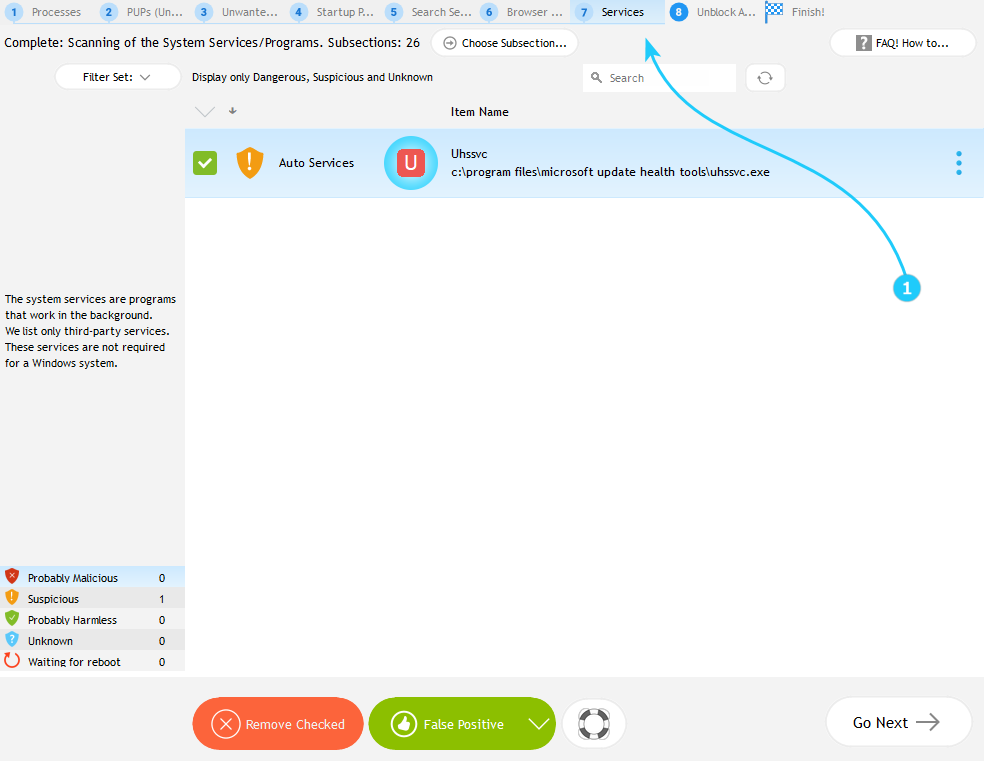
- After UnHackMe completes the scan, navigate to Browser Plugins tab (number 6) to review the list of detected malicious services.
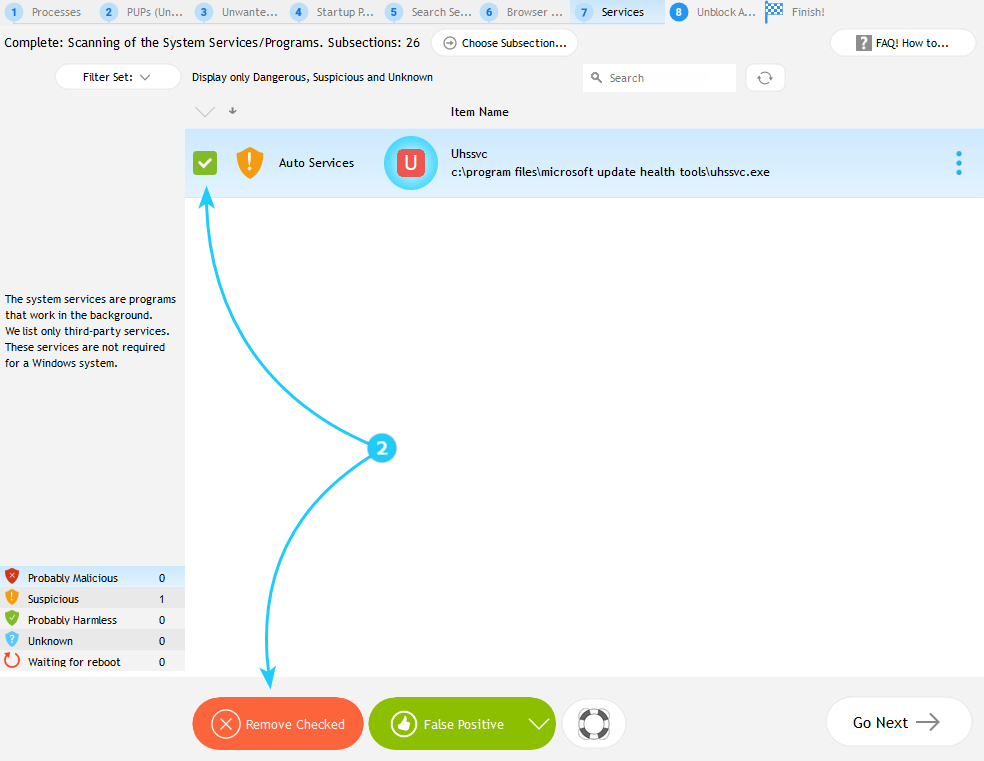
- Carefully examine each entry and check the boxes next to the services and drivers you wish to remove. UnHackMe highlights known malicious items with red symbol. Select the services you want to remove by checking the boxes next to them, then click Remove Checked button to to initiate the deletion process.
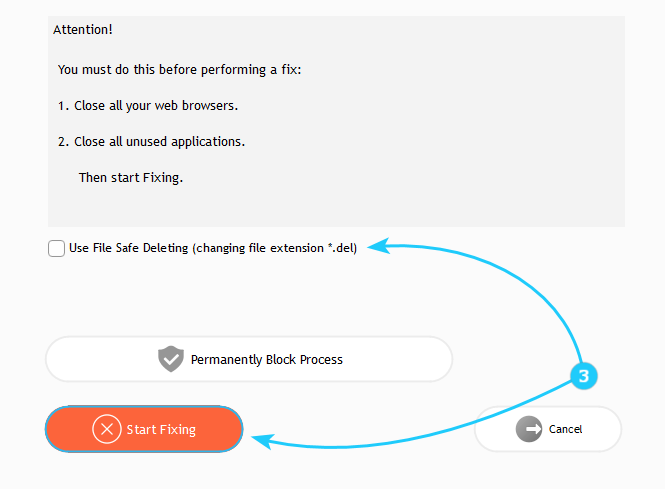
- A new window will appear with additional options for the removal process. Review these settings and adjust them according to your preferences. When ready, click Start Fixing to initiate the cleanup.
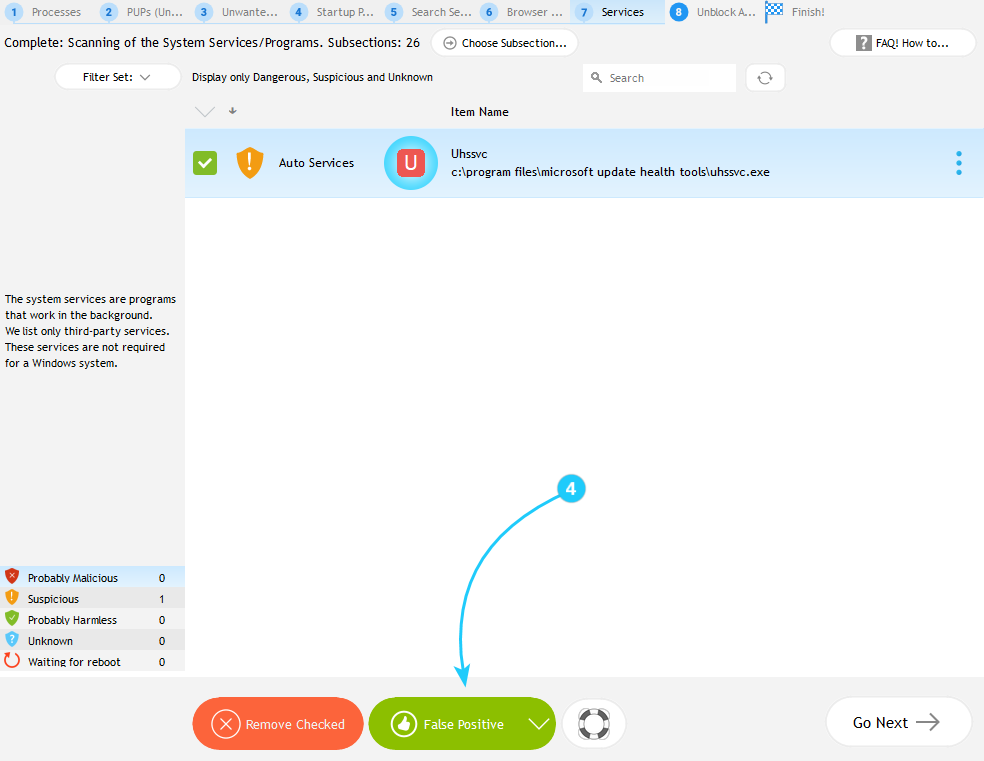
- If you believe that the service or driver is flagged incorrectly, select it and choose False Positive.
- After removal a system restart is mandatory to fully terminate any lingering processes. If the malware persists, repeat the process in Safe Mode, which prevents most background services from interfering.
Malware embedded in services or drivers demands a meticulous approach to avoid system harm while ensuring complete eradication. By following these steps - and employing Safe Mode when necessary you can neutralize even resilient infections. To analyze the results of the scan in the next tab, proceed to the "How to Restore Working of Blocked Antivirus" guide.
